
Getting Started
Learn The Core Product Flow From Account Setup To First Translation.
Account And Access
Create Or Access Your Account And Open Your Workspace Navigation.
Sign-In Options
actionAlways Visible
What It Does
Lets You Authenticate With Email/Password Or Google To Access Account Features.
How To Use
- Open Login And Choose Email Sign-In Or Google Sign-In.
- Complete Auth And Wait For Redirect To Dashboard Or App Workspace.
- Use Reset Password If You Cannot Access Your Email Credentials.
Behavior Notes
- Account-Specific Data Is Available Only After A Successful Session.
- Public Pages Remain Accessible Without Sign-In, But Translation Work Requires Auth.
Related
- Reset Password
- Dashboard
- Settings
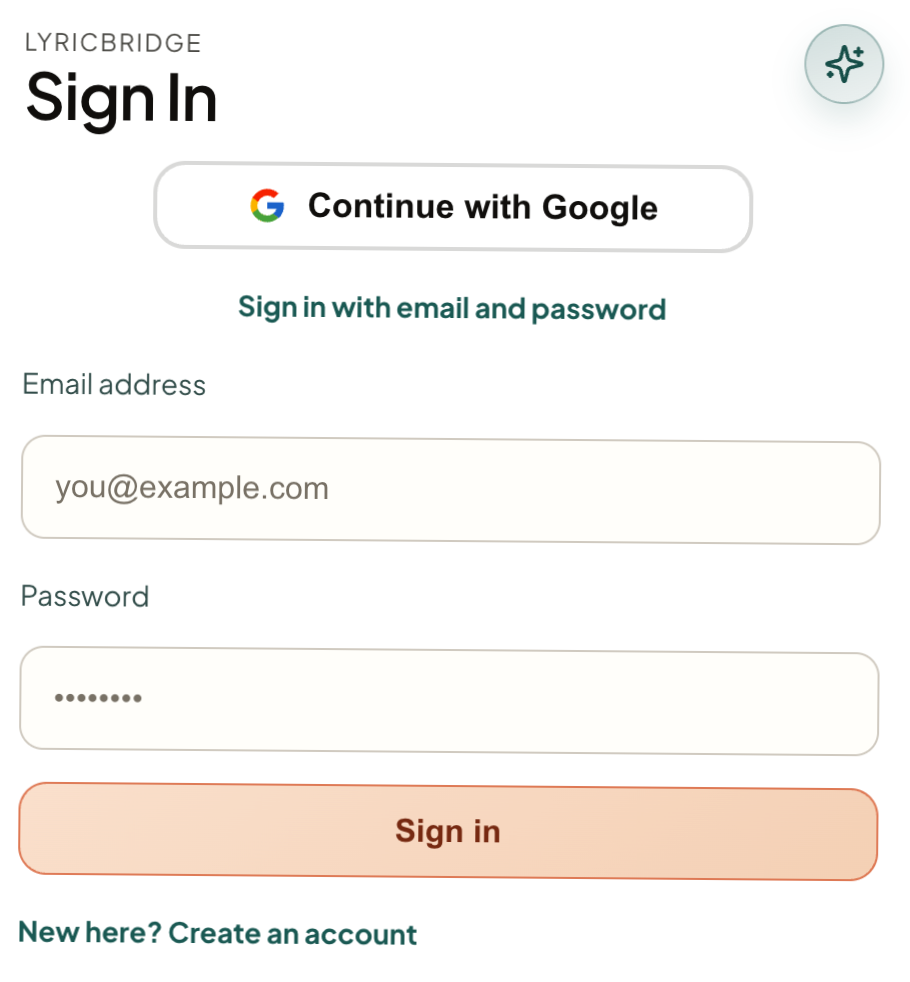
Sign-In Options
Shows Email Sign-In And Google Sign-In Choices.
App Navigation Tabs
panelWhen Enabled
What It Does
Provides Fast Access To Dashboard, Explore, Projects, Settings, And New Translation Workflows.
How To Use
- Use Top Navigation To Move Between Major Product Areas.
- Use Projects For Existing Work And New Translation For Creation Flow.
- Use Settings To Configure Defaults That Affect Future Sessions.
Behavior Notes
- Navigation Items Vary Slightly By Auth State And Current Context.
- Public Navigation And Auth Navigation Render Different CTAs.
App Navigation Tabs
Shows Main Top Navigation For Signed-In Users.

FAQ
Why Am I Sent Back To Home From App Pages?
Protected Pages Redirect To Home When There Is No Valid Auth Session. Sign In Again To Continue.